| Shamrock > Cactus > Manual [ English ] |
|
Basics License Agreement Version and Updates What can Cactus do? System Requirements Installation Configuration Start Window Network Startup Options Logging Filtering & Actions Forwarding/Uplink Device and Program Monitoring (Watchdog) File Monitoring (Monitor) |
The Server Server Installation As a Service The Viewer Usage Other Computers Cactus Slave Miscellaneous Syslog Send Command Line Tool Deutsch |
The holder of a Cactus license is permitted to install and operate the server module on one PC at a time. The remaining modules, i.e., the software for all desired workstations such as the log and heartbeat client, may also be used on any number of other workstations within the same local network.
The buyer acquires only a right of use, not ownership of the software. The right to use the software ends automatically if the purchase price is not paid on time or if these license terms are violated. All ownership and copyright rights remain with Shamrock Software GmbH.
Distributing the demo or freeware version on internet websites other than those operated by Shamrock itself is not permitted without written permission.
Shamrock Software, as the author of the program and the associated documentation, refers to national and international copyright regulations as well as the law against unfair competition in lieu of further specific licensing agreements.
Fundamentally, after purchasing Cactus, you own software without any time limitation, which can be used indefinitely within the scope of its version even without updates.
After purchasing Cactus, you automatically receive all updates and new features for 1 year. You may install these versions, but you are not required to do so. If the newly added features are not important to you, there is no reason not to keep your current version.
At the end of this first year, you will receive a one-time email reminding you that you can extend the update subscription for a fee. This allows you to benefit from software that is continuously adapted and further developed for new Windows versions or changes in operating systems. Telephone support or assistance via remote access is also only free of charge with an active service subscription.
Even if you did not use the subscription, you can always update to the current version later by purchasing a one-time update. To do this, go to "Info" in the configuration program and visit our news page or the update order page found there.
Cactus is an extremely powerful Syslog receiving, forwarding, and processing program that is easy to administer while still offering all the capabilities of a modern Syslog solution. It has the following core features:
Cactus has no special requirements regarding computer hardware. If the computer meets the specifications of the operating system, such as Windows 10 or Windows Server, this is sufficient for Cactus. Cactus does not generate any significant system load and is very resource-friendly.
Cactus requires a 32-bit or 64-bit Windows. The server part of Cactus can run on all Windows Server versions, as well as on Windows 10 for smaller applications, for example.
The Cactus client can be used without restriction on all Windows versions, including a Terminal Server environment.
Cactus understands all common Syslog messages, the classic BSD Syslog (RFC 3164) and the modern, extended RFC 5424.
Messages can be received and sent in ANSI (BSD) or UTF-8 including BOM.
Structure of a Syslog Message
You install Cactus simply by running the setup program from the ZIP file you received.
The setup program will guide you through the installation. You will have the opportunity to choose the installation language and the target path.
Important - Do not install the software under C:\Program Files! Access to directories below "C:\Program Files" is subject to strict restrictions: Write access from the network is usually not possible at all, and even local file access often yields contradictory results due to user- and program-specific virtualization of the Program Files directory. However, network-capable programs like CapiFax strictly require write permissions to their own directory, e.g., for saving fax files by network users. Therefore, network-capable Shamrock programs are not installed under C:\Program Files or similar by default, but under C:\Shamrock. This ensures that you will not experience any problems when using it over the network later.
The detailed procedure:The Cactus server is the part of the program that does the actual work. It receives Syslog messages from other applications, computers, or other devices on the network. These are filtered, stored, and forwarded. Therefore, it makes sense to run it as a Windows service so that it is started as early as possible when the computer boots, even without a user logging in.
You can activate the service in the Cactus configuration program under Startup Options.
Only when initially commissioning Cactus can it be practical to start the server as an application. In this case, you can see incoming messages, problems, and actions more directly and quickly. This makes rapid commissioning and initial configuration more convenient.
The application/service mode can be switched at any time.
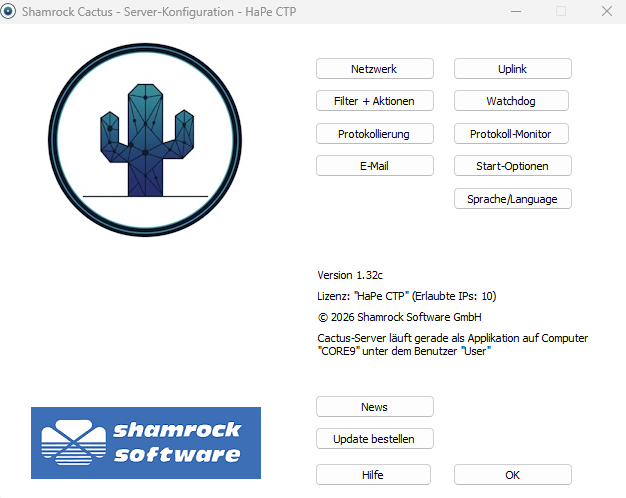
The main configuration window gives you a selection of the different configuration topics:
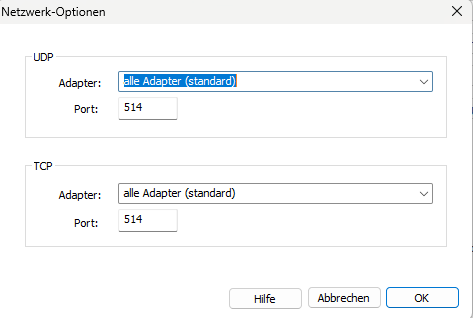
This configuration refers to the settings for the network adapters and ports on which Cactus should listen for Syslog messages. This can be configured separately for UDP and TCP messages. In general, you can leave the default settings as they are, unless you want to restrict the function to specific network segments.
This is one of the most important settings in Cactus. Incoming Syslog messages can be evaluated and further processed based on their properties.
First of all, it is important to note that the filters are processed in the displayed order. For example, you could configure as the top rule that messages with the priority DEBUG should be ignored and that no further rules should be processed. You could also statically set the facility of messages from a printer to Printer, allowing further processing by subsequent filters that are evaluated afterwards.
The settings per rule are divided into two categories:
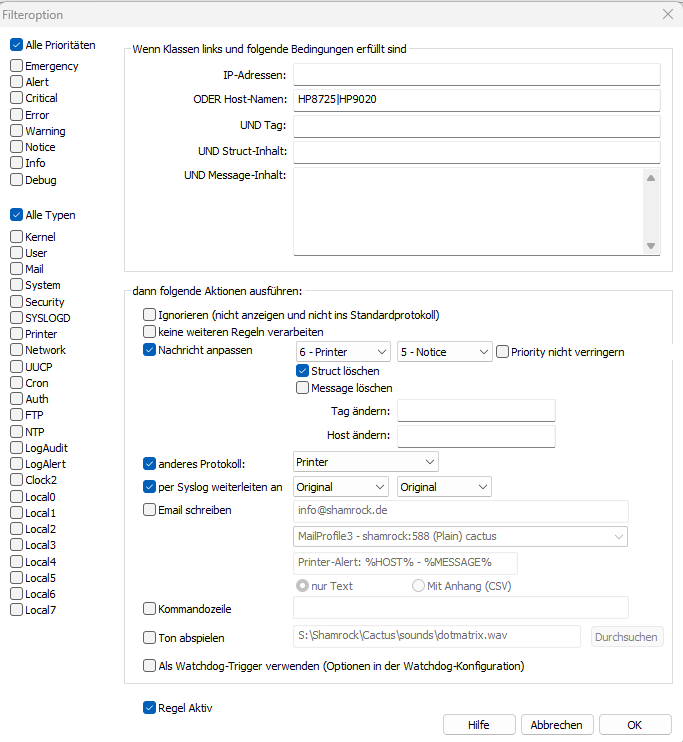
The following options are available for filtering:
IP addresses and hostnames can be used in parallel. The rule applies if either the IP or the hostname matches.
Cactus writes received Syslog messages into log files that are CSV-compatible. By default, this takes place in the LOGS subdirectory of the program directory.
However, this can be configured very flexibly.
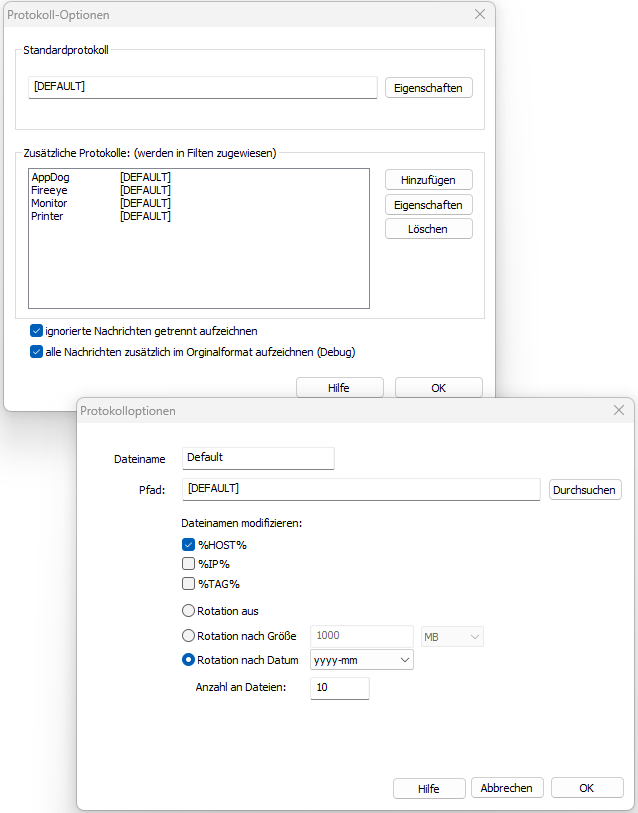
Generally, you can create different log definitions, which are then assigned to the various filters under Filters and Actions. For example, all logs coming from various printers can be assigned to one log type. Syslog events from applications can be assigned to a log that receives the name of the application.
Information such as hostnames, IP, or tag can then be automatically appended to a base name such as PRINTER, resulting in file names like Printer - HP9020.CSV or Printer - Lexmark12.CSV, for example. These are then automatically displayed in a tree structure in the Viewer.
Cactus also supports log rotation. Over time, huge amounts of log data can naturally accumulate. Cactus takes care of organizing this sensibly.
Log rotation basically has two modes of operation. Either size-based, where a new log is started when the previous one exceeds a specified size. The old one is then renamed by appending a counter. Additionally, you specify how many such rollover files can exist, e.g., 10.
The second variant is time-oriented. The log names are split by adding the year, year and month, or year, month, and day. The choice should be made based on the number and frequency of events. Here, too, you specify a maximum number of files.
In special cases, you can also instruct Cactus to save the logs in a different directory if they are processed automatically there. Note that write access must be possible. Especially when running as a service, Cactus inherently cannot write to network shares.
Additionally, you have the option to write messages that were ignored by rules into a separate log anyway. This can be helpful when starting to use the software while you are still editing the rules.
For DEBUG purposes, all messages can also be written once more into a debug log, into which the messages are written unchanged by rules.
The special logs Ignored and Debug are, of course, also subject to log rotation.
Important: When you change log configurations, such as rotation type or base name, this always only applies to future events. Existing logs remain untouched
Here you can configure access to one or more email accounts. These are used at various points in the program to send email notifications. For example, when processing filters, certain Syslog messages can be forwarded via email. The watchdog function can also send alarm emails.
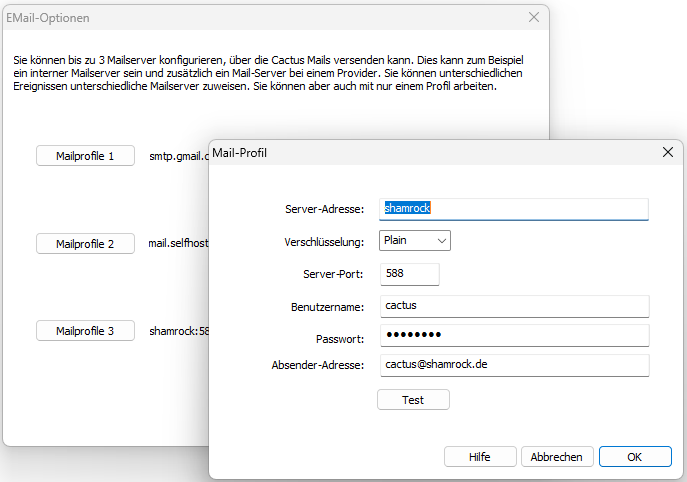
For each of the three email accounts, you can specify the server address and port, as well as the encryption type, username, and password to be used. You can find the relevant information from your provider.
With the test function, you can check your settings.
You do not define the destination address of generated emails here, but rather on an event- and rule-basis for the individual events. There, you also select which mail configuration should be used in each case.
You can see the last status for each configuration and also have the option to clear an outbox if you no longer want to use a particular configuration, for example because it no longer works.
Generally, you can find unsent emails in the MAIL.JOB subdirectory of the program directory.
Cactus is, of course, fundamentally a receiver of Syslog messages. However, in a larger infrastructure or across multiple locations, it makes sense to operate a local instance at each location, which, for example, performs filtering and prioritization of messages and only forwards selected Syslog events to a central instance.
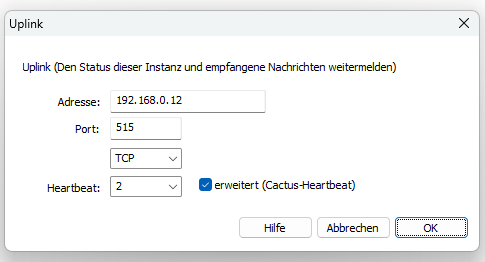
To do this, enter the address or domain of the higher-level instance here. Especially if it is a public IP address, you can of course use a DynDNS service if no static IP address is assigned by the provider there.
Options:
Using this function, you can configure system monitoring, including for other devices or networks.
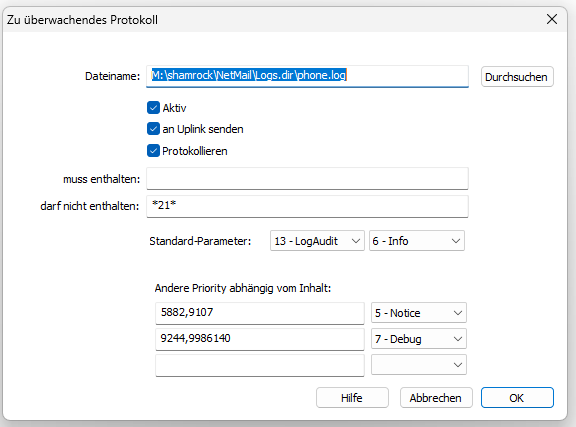
You can monitor other devices, instances of Cactus, or Cactus Slave on other computers or subordinate networks (customer networks). Additionally, it is possible to monitor the regular reception of specific Syslog messages (found under Filters and Actions).
Options:
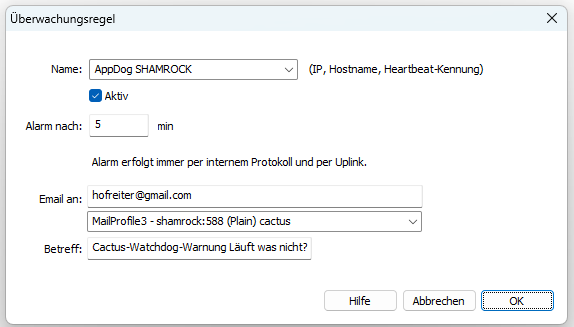
An alarm always takes place via internal logging and to the uplink, if configured.
You also receive a message/email for the all-clear, i.e., when a system reports back after a problem has been resolved.
Special rule <DEFAULT> - This rule is always used whenever either a new watchdog option is set in the filters or another Cactus or Cactus Slave instance registers with this server.
Here you manage the startup options for the Cactus server, i.e., the actual working module (CACTUS.EXE or CTSlave.EXE).
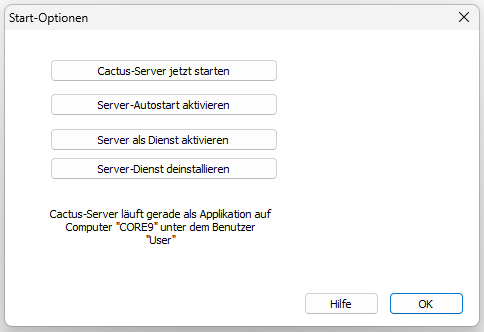
You have the following options here:
To be considered:
Placeholder
Placeholder
Placeholder
Placeholder